
Guide · Updated October 2026
Fujifilm film simulations in Lightroom, on any camera.
Lightroom only offers Fujifilm's looks for photos shot on a Fujifilm. Here's what each simulation does, and how to use them on Canon, Sony, Nikon or iPhone photos.
Why they're missing
Lightroom ties these looks to Fujifilm cameras.
Fujifilm cameras have film simulations built in: color recipes named after the company's film stocks, like Provia, Velvia and Acros. Adobe matches them in Lightroom as Camera Matching profiles.
The catch: those profiles only show up for raw files from a Fujifilm camera. Open a photo from a Canon, a Sony or your phone, and the list shows that camera's own looks instead. There's no switch to turn the Fujifilm ones on.
The way around it is a profile that carries each look, which Lightroom will apply to any photo. That's what I made the Fujifilm Profiles pack for.
The looks
One portrait, ten simulations.
The same Sony raw run through every profile, at the default strength. Tap a name to switch the photo, and watch the skin, the hair and the background.
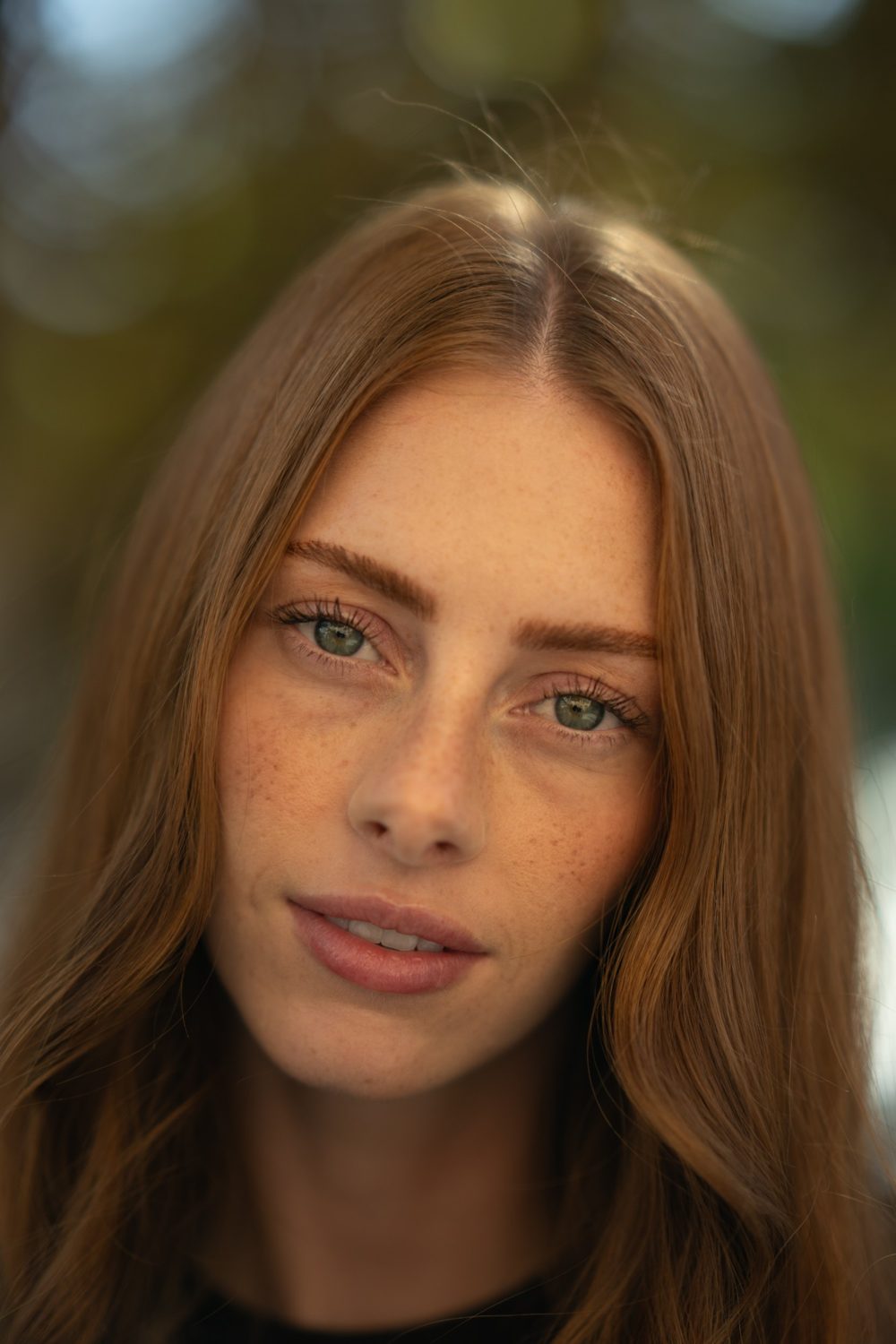 Original
How to use them
Four steps, any camera.
Raw files give you the most room to adjust, but the profiles work on JPEGs and phone photos too.
In Lightroom mobile, desktop or Classic
1. Install the profiles
Import the zip into Lightroom once. The install guide has the steps for phone, desktop, Classic and Photoshop.
2. Open the Profile Browser
Open a photo and tap the four-square icon at the top of the Edit panel (Basic panel in Classic). Scroll to the Sombra Fujifilm Profiles group.
3. Pick a simulation
Hover or tap through them to compare. Use the Amount slider, 0 to 200, to make the look lighter or stronger.
4. Edit like normal
A profile only sets the base color, so your sliders stay free. Fix exposure and white balance on top, as you would on a Fujifilm.
Which one when
Pick by what's in the photo.
A starting point, not a rule. Try two or three and keep the one that feels right.
By subject
Landscapes and blue skies
Velvia, or Provia if Velvia feels like too much.
Portraits
Astia in daylight, Pro Neg for softer skin.
Street and travel
Classic Chrome, or Classic Negative for more mood.
Moody or cinematic
Eterna, or Eterna Bleach Bypass for grit.
Black and white
Acros.
Not sure
Provia first, then Classic Chrome. Between them they cover most photos.
Questions
Good to know.
Are these Fujifilm's own profiles?
They start from Fujifilm's film simulation looks, which I've adjusted and tuned for photos in Lightroom, so they work on any camera. Sombra isn't made or endorsed by Fujifilm, and the simulation names are Fujifilm's.
I shoot Fujifilm. Do I need these?
Probably not for your raw files, since Lightroom already gives you Fujifilm's profiles for them. These help when you mix in photos from your phone or another camera and want them to match.
What's the difference between a profile and a preset?
A preset moves your sliders. A profile changes the color underneath them and leaves the sliders at zero, so you can keep editing without undoing the look.
Do they work on iPhone or Android photos?
Yes, in the free Lightroom mobile app. They work on the phone's regular photos and on raw ones.